How to Set Up Two-Factor Authentication (2FA) Safely?
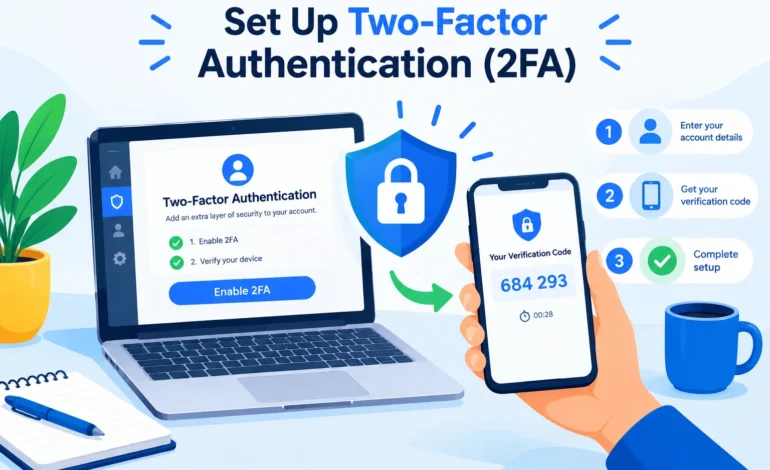
A stolen password can hand over your email, bank, and social accounts in minutes. Two-factor authentication (2FA) adds a second step, so a password alone is not enough to get in.
Magazines Insights guide shows how to set up two-factor authentication on your most important accounts, which method to choose, and how to avoid getting locked out.
Table of Content
Key Factors
- 2FA asks for something you know (a password) plus something you have (a phone or key).
- An authenticator app or a hardware key is safer than text-message codes.
- Turn on 2FA for email first, because email can reset every other account.
- Save your backup codes before you finish setup.
What is two-factor authentication?
When you log in with 2FA, you enter your password and then prove it is really you with a second factor. That factor could be a code from an app, a prompt on your phone, a fingerprint, or a physical security key. A thief with only your password gets stopped at the second step.
Which 2FA method should you choose?
| Method | Security | Convenience | Notes |
| Hardware security key | Highest | Medium | Plug-in or tap key; protects against phishing |
| Passkey | Very high | High | Uses your device’s fingerprint or face unlock |
| Authenticator app | High | High | Free codes that refresh every 30 seconds |
| Push prompt | Medium to high | High | Tap approve on your phone; watch for prompt-bombing |
| SMS text code | Lower | High | Better than nothing, but vulnerable to SIM-swap scams |
If an account offers an authenticator app, pick that over text messages.
Step-by-step: set up 2FA with an authenticator app
- Install an authenticator app. Options include Google Authenticator, Microsoft Authenticator, Authy, or the built-in tools in many password managers.
- Open the account’s security settings. Look for “Security,” “Login,” or “2-Step Verification.”
- Choose “Authenticator app.” The site shows a QR code.
- Scan the QR code with your authenticator app.
- Enter the six-digit code the app shows to confirm setup.
- Save your backup codes. Store them in a password manager or print them and keep them somewhere safe.
Where to turn it on first
Start with the accounts that would hurt most if someone took them over:
- Your main email account. Anyone who controls your email can reset your other passwords.
- Banking and payment apps.
- Your password manager.
- Apple, Google, or Microsoft accounts.
- Social media and shopping accounts.
- Your website and hosting logins, including WordPress admin.
Set up 2FA on a WordPress site
If you run a blog, protect your admin login too. Install a trusted security or 2FA plugin, then turn on authenticator-app codes for every admin and editor. Limit login attempts as well.
Backup plans so you do not lock yourself out
- Backup codes: Save the one-time codes each service gives you.
- A second device or key: Register two security keys, or add your account to a second phone.
- Recovery email and phone: Keep them current.
- Moving phones: Transfer your authenticator app properly before wiping the old phone.
Common mistakes to avoid
- Skipping backup codes, then losing the phone
- Approving a login prompt you did not start
- Sharing a verification code with anyone, including someone claiming to be support
- Using the same weak password everywhere, even with 2FA on
FAQ
Is two-factor authentication really necessary?
It is one of the simplest, most effective steps you can take, especially for email and money accounts.
Is SMS 2FA safe?
It is better than no 2FA, but app-based codes, passkeys, or hardware keys are stronger.
What if I lose my phone?
Use your backup codes or a second registered device, then reset 2FA from a trusted device.
Does 2FA stop phishing?
Some methods do better than others. Hardware keys and passkeys resist phishing best, while codes can still be tricked out of you.
Do I need a password manager too?
It helps. Unique, strong passwords plus 2FA give you layered protection.
Conclusion
Two-factor authentication takes a few minutes per account and blocks most simple takeover attempts. Start with your email, use an authenticator app or passkey where possible, and store your backup codes safely.