How to Speed Up a Slow WordPress Website? 10 Easy Steps
A slow website costs you visitors, rankings, and ad revenue. People leave quickly when a page drags, and Google considers page experience when ranking. The good news is that most WordPress speed problems have simple fixes.
Magazines Insights guide walks people through 10 steps to speed up WordPress website, in order of impact. You do not need to be a developer.
Table of Content
- Key takeaways
- Step 1: Measure your current speed
- Step 2: Use quality hosting
- Step 3: Choose a lightweight theme
- Step 4: Install a caching plugin
- Step 5: Optimize your images
- Step 6: Remove unused plugins and themes
- Step 7: Update PHP, WordPress, and plugins
- Step 8: Use a CDN
- Step 9: Minify and defer scripts
- Step 10: Clean your database and limit extras
- Common mistakes to avoid
- FAQ
- Conclusion
Key takeaways
- Measure first, so you know what to fix.
- Hosting, images, caching, and plugins cause most slowdowns.
- Heavy themes and page builders can add significant weight.
- Aim for good Core Web Vitals: Largest Contentful Paint under 2.5 seconds, Interaction to Next Paint under 200 ms, and Cumulative Layout Shift under 0.1.
Step 1: Measure your current speed
Before changing anything, test your site with free tools:
- Google PageSpeed Insights for Core Web Vitals and suggestions
- GTmetrix or WebPageTest for detailed waterfall charts
Test your homepage and one blog post, on mobile and desktop. Write down the scores so you can compare later.
Step 2: Use quality hosting
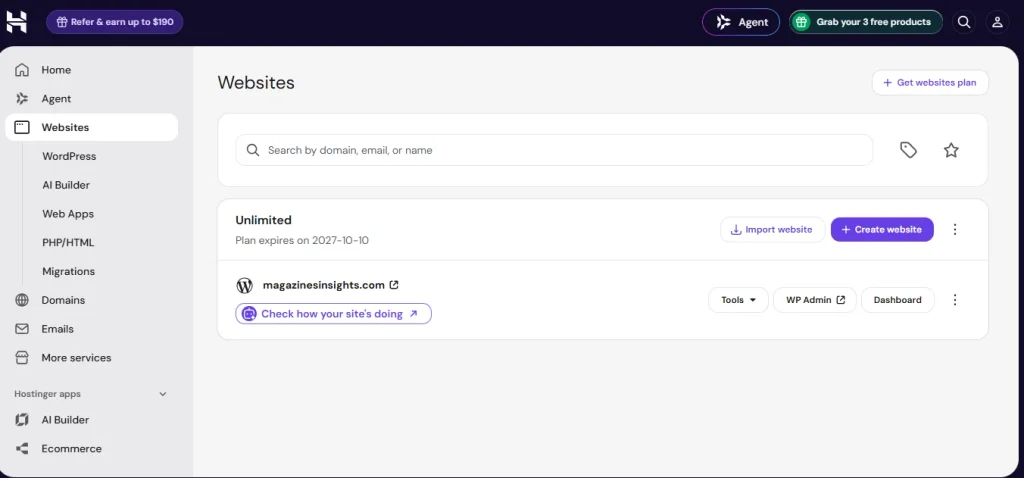
Cheap shared hosting is a common cause of slow response times. Look for hosting with modern servers (LiteSpeed or NGINX), SSD or NVMe storage, built-in caching, and data centers near your audience. If your target readers are in the US and UK, choose a server location there or pair your host with a CDN. Magazines Insights platform is hosted on Hostinger. People can join Hosting on Hostinger through Magazines Insights can get upto 79% off.
Step 3: Choose a lightweight theme
Multi-purpose themes loaded with demo content, sliders, and dozens of widgets can be very heavy. For a blog, a lightweight theme such as GeneratePress, Astra, or Kadence is usually faster. Import only the demo content you need, and delete the rest.
Step 4: Install a caching plugin
Caching stores ready-made copies of your pages so WordPress does not rebuild them for every visitor. Popular options include LiteSpeed Cache (best on LiteSpeed hosts), WP Super Cache, and WP Rocket (paid). Use only one caching plugin at a time, and clear the cache after design changes.
Step 5: Optimize your images
Images are often the biggest files on a page. To shrink them:
- Resize images to the size they will be displayed.
- Compress them with a plugin such as ShortPixel, Imagify, or Smush.
- Use modern formats like WebP.
- Enable lazy loading so off-screen images load later.
Avoid uploading a 4,000-pixel photo for a 800-pixel space.
Step 6: Remove unused plugins and themes
Every active plugin can add scripts, styles, and database queries. Deactivate and delete plugins you do not use, and remove inactive themes. Keep only well-maintained plugins from trusted developers.
Step 7: Update PHP, WordPress, and plugins
Newer PHP versions run WordPress faster and more securely. In your hosting panel, check your PHP version and move to a currently supported one. Keep WordPress core, your theme, and plugins updated too. Back up your site first.
Step 8: Use a CDN
A content delivery network stores copies of your files on servers around the world and serves them from a location near each visitor. Cloudflare has a free plan that works well for many blogs. It also adds basic security features.
Step 9: Minify and defer scripts
Minifying removes unnecessary characters from CSS and JavaScript files, and deferring delays non-essential scripts until after the page loads. Most caching plugins offer these options. Enable them one at a time and check that your site still looks and works correctly.
Step 10: Clean your database and limit extras
Over time, WordPress stores post revisions, spam comments, and expired data. Use a plugin such as WP-Optimize to clean up, and limit stored revisions. Also reduce heavy extras like auto-playing videos, too many web fonts, and many social-media embeds.
Common mistakes to avoid
- Installing several caching or optimization plugins that conflict
- Compressing images too aggressively until they look blurry
- Ignoring mobile speed, where most visitors browse
- Skipping backups before making changes
FAQ
What is a good WordPress load time?
Aim for pages that load in under about 2 to 3 seconds on mobile, and focus on passing Core Web Vitals.
Does site speed affect SEO?
Yes. Speed is part of page experience, and slow pages also increase bounce rates.
Do I need a paid plugin to speed up WordPress?
Not necessarily. Free tools like LiteSpeed Cache, Cloudflare, and image compression plugins cover most needs.
Will a CDN help if my readers are in the US and UK?
Yes, especially if your server is far from them. A CDN serves your files from a nearby location.
Conclusion
Start by measuring your speed, then work through hosting, theme, caching, images, and plugins. Small improvements add up, and a faster site is better for readers, search rankings, and future ad earnings. Retest after each change so you know what actually helps.